Exporting Your Project
After creating your mathematical animation, you'll want to export it as a video file or save your project for future editing. This guide explains the export options in AniMathIO.
Saving Your Project
It's important to save your work regularly. AniMathIO projects are saved in the .animathio format, which preserves all your elements, settings, and timeline information:
- In the left sidebar, click on the Export option
- In the Save/Save as Project section, click the Save button
- Choose a location and filename for your project
- Click Save
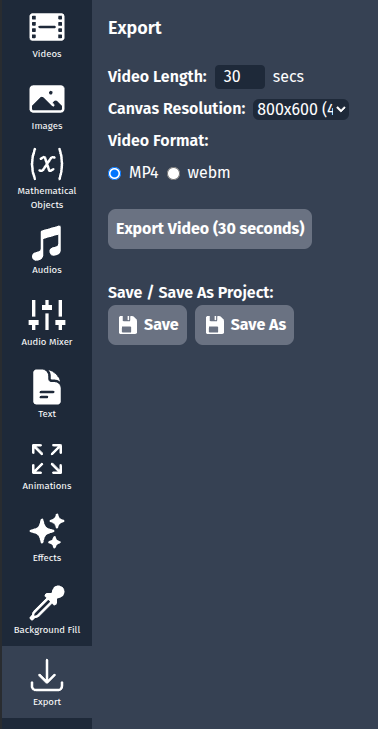
Setting Video Export Parameters
Before exporting your animation as a video, you can configure several important parameters:
- In the left sidebar, click on the Export option
- Configure the export settings:
- Video Length: Set the total duration of your video in seconds
- Aspect Ratio: Choose from common aspect ratios ( 1920x1080 (16:9 - Full HD), 800x600(4:3 - SD), etc.)
- Video Format: Select your preferred format (MP4 or webm)
Exporting as Video
Once you've configured your export settings:
- In the Export Video section, click the Export Video button
- Choose a location and filename for your video
- Click Save
- A progress indicator will appear showing the export progress
- Once complete, you can find your video at the specified location
Export Tips and Best Practices
- Check the timeline: Before exporting, make sure all your elements have the correct timing
- Preview your animation: Use the playback controls to review your animation before export
- Consider file size: Higher quality and longer videos will result in larger file sizes
- Test a short segment: If you're unsure about settings, try exporting a short segment first
- Save project before export: Always save your project file before exporting to video
Video Formats Explained
- MP4: The most widely compatible format, good for sharing online or presenting
- WebM: Offers good compression and quality, faster to export, ideal for web embedding but less compatible than MP4
Troubleshooting Export Issues
If you encounter issues during export:
- Ensure you have sufficient disk space
- Close other resource-intensive applications
- For large or complex projects, consider increasing the quality setting
- If export fails repeatedly, try saving your project and restarting AniMathIO
Congratulations 🎉
You've completed the basic tutorials for AniMathIO! You now know how to:
- Navigate the interface
- Work with mathematical components
- Manage the timeline and animations
- Add text and LaTeX formulas
- Export your projects
For more advanced techniques and features, check out the Advanced Tutorials section.